
You can create an API key from the Sortd Settings menu inside Gmail.
Open Gmail and select Sortd.
In the Sortd sidebar, select Settings.
From the Settings menu, select API.
Under Create a key, enter a descriptive name for the key—for example, the name of the app or integration that will use it.
Select the permissions, or scopes, the integration needs. For security, select only the required permissions.
Select Generate key.
Copy the API secret immediately and store it somewhere secure, such as a password manager.
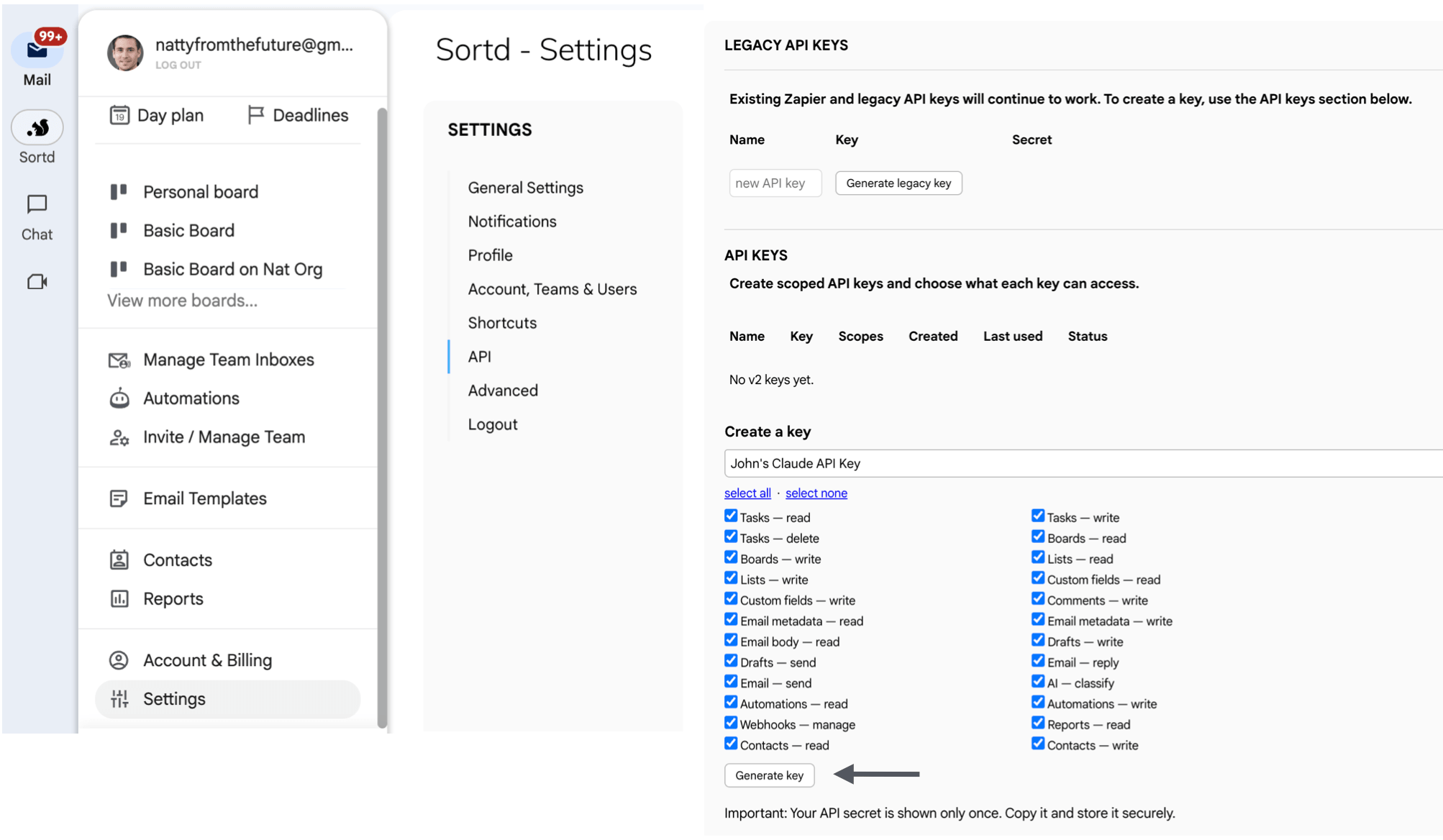
Important: Your API secret is displayed only once at the bottom of the page. If you close the page without copying it, you’ll need to revoke the old one and generate a new key.
Never share your API secret or include it in screenshots, emails, or publicly accessible files.
Choose permissions carefully
Each scope controls what the key can access or change. Grant only the permissions required for the intended workflow.
For agent-assisted email workflows, consider starting with permissions that allow the agent to read relevant information and create drafts. Grant email-sending or deletion permissions only when they are specifically required and you are comfortable allowing those actions.
Keep your key secure
Treat an API key like a password:
Store it in a password manager or secure secrets manager.
Do not share it through email or chat.
Do not place it in screenshots, source code or public repositories.
Replace the key if you believe it may have been exposed.
Next steps
Follow the five-minute API quickstart