
Sortd’s AI Oversight feature gives admins a simple and quick way to add AI to any board.
Instead of setting up AI automations manually, admins can use the AI Oversight panel to switch on AI features for a board in just a few clicks.
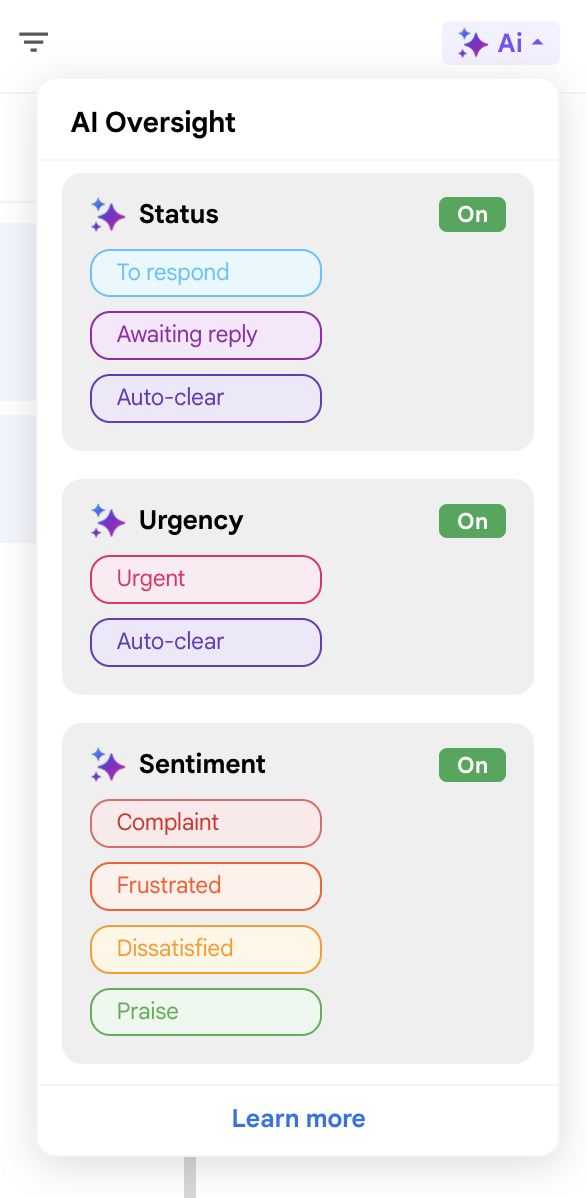
When enabled, Sortd analyzes the emails shown as cards and displays helpful AI signals directly on the front of each card. This gives your team more visibility into what needs attention, without needing to open every thread or manually apply tags.
AI Oversight is controlled at board level, so admins can choose which boards should use AI and which AI features should be enabled.
What AI Oversight can do
Admins can enable any of the following AI features on a board-by-board basis:
Status
Status helps your team see where an email conversation stands.
For example, Sortd can help identify whether an item is:
- To respond
- Awaiting reply
- Auto-clear
This is useful for managing customer or client communication, because your team can quickly see which conversations may need a response and which are waiting on someone else.
Urgency
Urgency helps highlight conversations that appear time-sensitive.
For example, Sortd can help identify whether an item is:
- Urgent
- Auto-clear
This makes it easier for teams to spot important messages and prioritize them more quickly.
Sentiment
Sentiment helps your team understand the likely tone of a conversation at a glance.
For example, Sortd can help identify messages that may include:
- Complaint
- Frustrated
- Dissatisfied
- Praise
This is useful for support, sales, account management, and other customer-facing teams that need to quickly understand the tone of incoming messages.
Why use the AI Oversight panel?
The AI Oversight panel is the easiest way to turn on AI for a board.
It is designed for admins who want a simple setup without needing to build automation rules. You can switch AI features on or off from one place, and Sortd handles the setup behind the scenes.
This is a good option if you want to quickly help your team identify:
- Emails that may need a response
- Conversations that are waiting for someone else
- Urgent messages
- Complaints or frustrated customer messages
- Positive customer feedback or praise
How to turn on AI Oversight
Only admins can enable or disable AI Oversight for a board.
To turn it on:
- Open the board where you want to use AI.
- Click the AI button at the top of the board.
- The AI Oversight panel will open.
- Switch on the AI features you want to use:
- Status
- Urgency
- Sentiment
Once enabled, Sortd will start applying AI signals to items on that board.
AI Oversight vs AI Automations
There are two ways to use AI on boards in Sortd:
- AI Oversight panel — the quick and simple option.
- AI Automations — the more customizable option.
Use the AI Oversight panel if you want the fastest way to enable AI on a board without setting up rules manually.
Use AI Automations if you need more control over exactly when AI runs, which conditions apply, or what other actions should happen after AI has assessed an item.
For example, AI Automations are useful if you want to:
- Run AI only when a reply is received
- Run AI only on certain boards or workflows
- Combine AI actions with other actions
- Move, assign, or update items after AI has assessed them
- Create a more customized process for your team
Learn more here:
https://sortd.freshdesk.com/support/solutions/articles/6000284602-using-ai-actions-in-sortd-automations
Important note if you already use AI Automations
If you are already using your own AI Automations on a board, we recommend that you do not also use the AI Oversight panel on the same board.
The AI Oversight panel is simple to use because Sortd sets everything up for you behind the scenes. To do this, it creates invisible automations for the AI features you switch on.
These behind-the-scenes automations are used to manage:
- AI Status
- AI Urgency
- AI Sentiment
If you also create your own AI Automations for the same board, the two setups may overlap or create duplicate AI updates.
If you need a custom AI workflow, use AI Automations instead of the simple AI Oversight panel.
Admin controls
AI Oversight is controlled at board level.
Only admins can enable or disable these features, and they can choose which AI features are turned on for each individual board.
This gives teams flexibility to use different AI features depending on the purpose of each board.
Feature availability
AI features may depend on your Sortd plan.
You can view the latest plan details here:
https://www.sortd.com/pricing
If you do not see the AI button or AI Oversight panel, the feature may not be included in your current plan, may need to be enabled by an admin, or may still be rolling out to your account.
Related articles
Using AI Actions in Sortd Automations
https://sortd.freshdesk.com/support/solutions/articles/6000284602-using-ai-actions-in-sortd-automations
How do I set up email, task, and AI automations in Sortd?
https://sortd.freshdesk.com/support/solutions/articles/6000245024
Sortd Pricing
https://www.sortd.com/pricing